> For the complete documentation index, see [llms.txt](https://ztrust.gitbook.io/ztrust-documentation/llms.txt). Markdown versions of documentation pages are available by appending `.md` to page URLs; this page is available as [Markdown](https://ztrust.gitbook.io/ztrust-documentation/user-manual-ztrust-v4.2/4.-admin-manual.md).
# 4. Admin Manual
This section explains the fundamental guidelines that users should follow when using ZTrust. It outlines the steps required to set up various features using the ZTrust Admin Console.
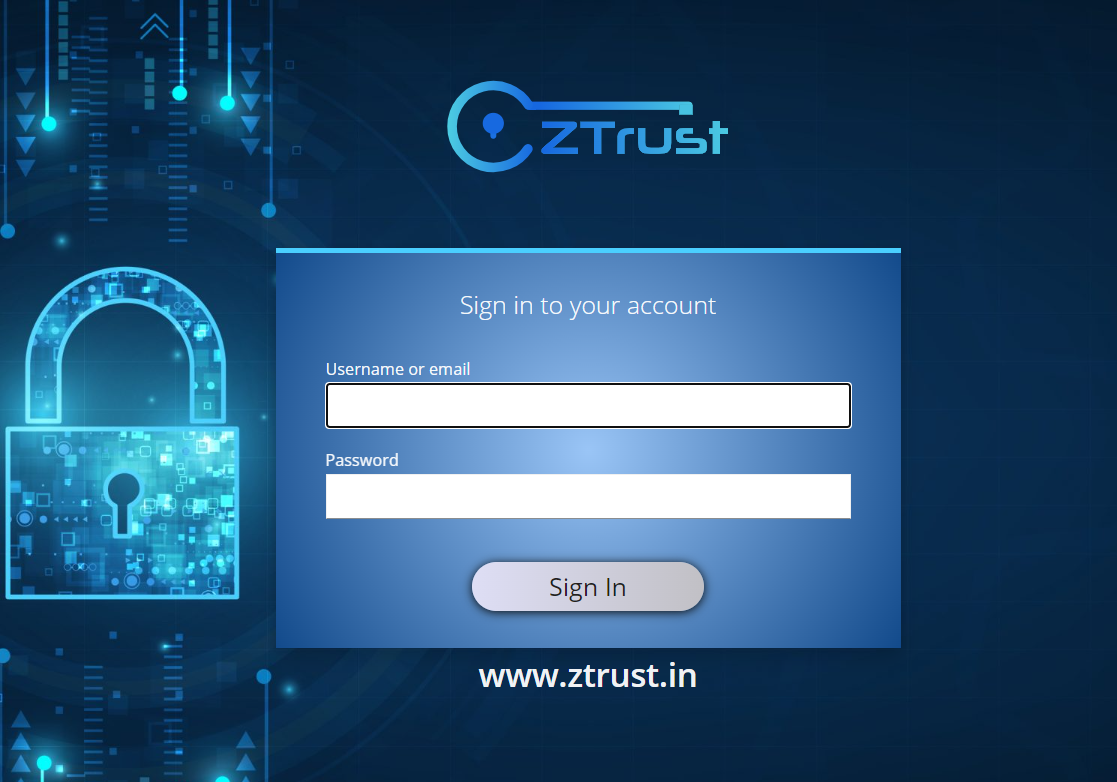
Go to the ZTrust Administration Console using the URL you specified during deployment.
Fig 4.a: Admin Manual, login page
Log in with the credentials you provided at deployment time (ZTRUST\_ADMIN and ZTRUST\_ADMIN\_PASSWORD).
After successfully logging in, you will see that ZTrust initially contains only one realm — “**master**”.
Fig 4.b: Admin Manual, home page of mater realm
To activate your license, navigate to the “**License**” tab & enter the promo code provided to you by the ZTrust team. Use the code exactly as it was shared with you.
Fig 4.c: Admin Manual, version tab in master realm
After the license is successfully activated, **ZTrust** is ready to use.
{% hint style="warning" %}
**Note:** It is recommended not to make any configurations or changes in the master realm. Your applications should be secured via non-master realms. Realms are isolated entity groups/tenants which can be in reference with a business group or department. You should group your applications into business group or department categories and create the realms accordingly. One application in a particular realm can not be accessible to users from another realm. To manage applications, users, groups, and other settings, create a new realm
instead of using the master realm.
{% endhint %}