> For the complete documentation index, see [llms.txt](https://ztrust.gitbook.io/ztrust-documentation/llms.txt). Markdown versions of documentation pages are available by appending `.md` to page URLs; this page is available as [Markdown](https://ztrust.gitbook.io/ztrust-documentation/user-manual-ztrust-v4.1/4.-admin-manual/4.7-smtp-email-configuration.md).

# 4.7 SMTP Email Configuration

## 1. Overview

ZTrust uses an SMTP (Simple Mail Transfer Protocol) server to send **emails** such as:

1. Account verification emails
2. Password reset links
3. OTP codes
4. Admin notifications
5. Account Updates, etc

To enable this, you need to configure SMTP settings at the **realm level** in the ZTrust Admin Console.

## 2. Prerequisites

Before configuring, ensure you have:

* An **SMTP server** (e.g., Gmail)
* A valid **email account** with username & password
* SMTP **host**, **port**, and **security type** (TLS/SSL) details
* Proper **firewall rules** allowing outbound traffic on SMTP port ( 465)

## 3. Configuration via Admin Console

1. **Login** to the **ZTrust Admin Console**.

   <figure><img src="/files/EaBVxixSjSt5tXYJm4WU" alt=""><figcaption><p>Fig 4.6.a: Master realm</p></figcaption></figure>
2. Click on **Manage Realms** in the sidebar to view the list of realms available in your **ZTrust**.

   <figure><img src="/files/912RO57QJpXm72j3yDSY" alt=""><figcaption><p>Fig 4.6.b: List of realm under manage realms</p></figcaption></figure>
3. From the list of realms, select the realm where you want to configure email.

   <figure><img src="/files/bxapICMQwu9Er1dMl0X0" alt=""><figcaption><p>Fig 4.6.c: Demo realm welcome page</p></figcaption></figure>
4. In the left sidebar, under the **Configure** section, Navigate to **`Realm Settings → Email`**

   <figure><img src="/files/ACRE3XEhQ13IjMG4d33a" alt=""><figcaption><p>Fig 4.6.d: Email tab under realm settings tab</p></figcaption></figure>
5. Fill in the SMTP details:

   <table><thead><tr><th width="270.60546875">Field</th><th>Description</th></tr></thead><tbody><tr><td>From</td><td>Email address that appears in the "From" field of emails.</td></tr><tr><td>From Display Name</td><td>Name that will be displayed (e.g., "ZTrust Support").</td></tr><tr><td>Reply-To</td><td>(Optional) Email address for replies.</td></tr><tr><td>Host</td><td>SMTP server hostname (e.g., <code>smtp.gmail.com</code>).</td></tr><tr><td>Port</td><td>SMTP port ( 465).</td></tr><tr><td>Encryption</td><td>Choose <code>SSL</code></td></tr><tr><td>Username</td><td>SMTP account username (full email address for most providers).</td></tr><tr><td>Password</td><td>SMTP account password or app-specific password.</td></tr><tr><td>Encryption</td><td>select <strong>SSL</strong> (instead of None or TLS).</td></tr><tr><td>Authentication</td><td>Keep this option checked if your SMTP server requires login credentials (username &#x26; password) to send emails.</td></tr></tbody></table>
6. **Note**: The password here does not refer to your email login password. You need to generate an app password from your Gmail account. Follow the steps below to generate the **app password**.

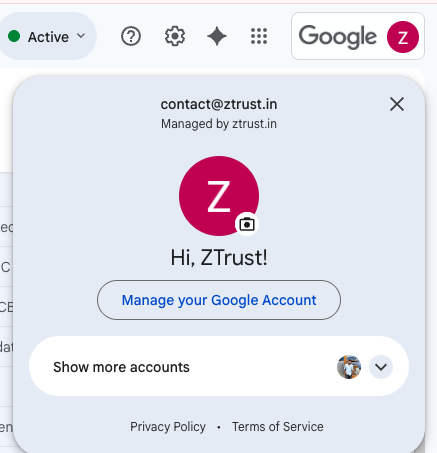
   1. Log in to the email account for which you need to generate the app password, click on your **profile** icon, and select ***Manage your Google Account**.*

      <figure><img src="/files/7mR2txrdCfsym7sYQthW" alt="" width="328"><figcaption><p>Fig 4.6.e: Gmail account info</p></figcaption></figure>
   2. On the home page, use the search bar to type ***App Passwords*****.** From the dropdown suggestions, select ***App Passwords***.

      <figure><img src="/files/fRsFLw3CVCp1roeZ2Lpz" alt=""><figcaption><p>Fig 4.6.f: Search for App Passwords under home section</p></figcaption></figure>
   3. You will be redirected to the App Passwords page. Enter a name for the app, for example ***ZTrust***, and then click *Create*.

      <figure><img src="/files/7gzyqvElke04Mss4YDJP" alt=""><figcaption><p>Fig 4.6.g: App password tab</p></figcaption></figure>
   4. A random app password will be generated.

      <figure><img src="/files/X375TWqsNrWTbWpvd7c5" alt=""><figcaption><p>Fig 4.6.h: Successfully app password created</p></figcaption></figure>
   5. Copy the generated password, then go to the **ZTrust** **Admin** **Console**. Open the realm where you want to configure SMTP and paste this password in the SMTP settings.
   6. Make sure you have configured the SMTP host, port, username, and password.

      <figure><img src="/files/U45Cew35EddNjk0GVYNk" alt=""><figcaption><p>Fig 4.6.i: Entered SMTP configuration</p></figcaption></figure>
   7. &#x20;Then save the configuration. You will see a success notification confirming that the update was successful.

      <figure><img src="/files/EqZpklXK6cL1dttzoTQV" alt=""><figcaption><p>Fig 4.6.j: Saved SMTP configuration</p></figcaption></figure>
   8. Click on **Test Connection**. A confirmation email will be sent to your email address to verify that the SMTP configuration was successful.

      <figure><img src="/files/c6dBmdRgG4TgxVDrRDrb" alt=""><figcaption><p>Fig 4.6.k: Successfully connection established</p></figcaption></figure>
   9. You have now successfully configured SMTP email in **ZTrust** for the selected realm. If you create a new realm, follow the same steps to configure SMTP for that realm as well.

## 4. Troubleshooting

1. **Emails not being sent?**
   1. Check ZTrust logs (`docker logs ZTrust` or `ZTrust server logs` ).
   2. Verify SMTP credentials.
   3. Ensure firewall allows outbound SMTP ports.
2. **Authentication failed?**
   1. Check username/password.
   2. For Gmail use app password.
3. **SSL handshake errors?**
   1. Try switching between TLS/SSL.
   2. Ensure correct port is used.

You have successfully configured SMTP email in ZTrust Admin console for your selected realm. This enables ZTrust to send notification emails such as verification links, password resets, and account updates.

If you create additional realms, simply follow the same steps to configure SMTP for each realm.