
Fig 4.25.a: Navigating to Authentication section in side bar
Fig 4.25.a: Navigating to Authentication section in side bar

Fig 4.25.b: Do copy of browser flow

Fig 4.25.c: Give a name to the duplicated browser flow for One to many

Fig 4.25.d: One to many browser flow configuration page

Fig 4.25.e: Proceeding to add a new execution to One to many flow

Fig 4.25.f: Make it as Alternative

Fig 4.25.g: Proceeding to configure One to many

Fig 4.25.h: One to many configuration page

Fig 4.25.i: General tab under Realm setting section

Fig 4.25.j: Navigating to User profile tab

Fig 4.25.k: Creating a country code attribute

Fig 4.25.l: Attributes list

Fig 4.25.j: Creating new Phone attribute

Fig 4.25.k: Navigating to Users section in side bar

Fig 4.25.l: User creation page
| Field Name | Mandatory (Yes/No) | Field Type | Description |
|---|---|---|---|
| Username | Yes | Text | Enter the username for the user |
| Yes | Text | Enter the preferred Email ID of User | |
| First Name | No | Text | Enter the First name of User |
| Last Name | No | Text | Enter the Last name or Surname of User |

Fig 25.m: Creating an user

Fig 4.25.n: List of available users
| Field Name | Mandatory (Yes/No) | Field Type | Description |
|---|---|---|---|
| Username | Yes | Text | Enter the username for the user |
| Yes | Text | Enter the preferred Email ID of User | |
| First Name | No | Text | Enter the First name of User |
| Last Name | No | Text | Enter the Last name or Surname of User |
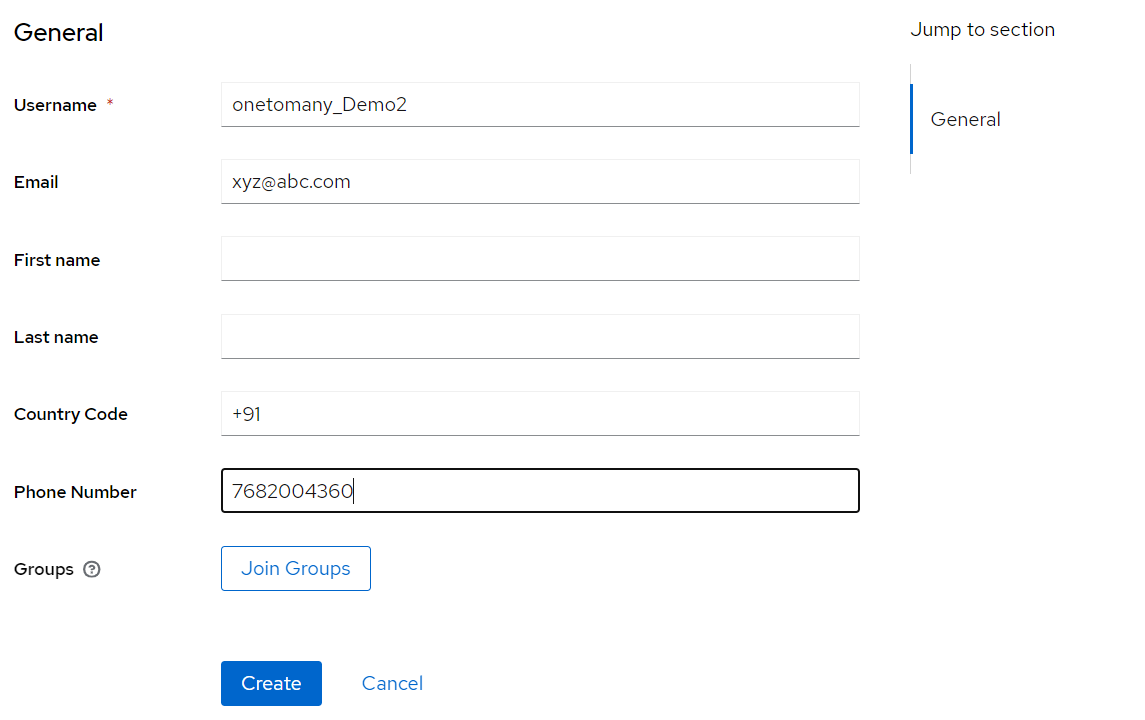
Fig 4.25.o: Creating an user

Fig 4.25.p: Login page with try another way option

Fig 4.25.q: Login methods

Fig 4.25.r: Phone number loin page
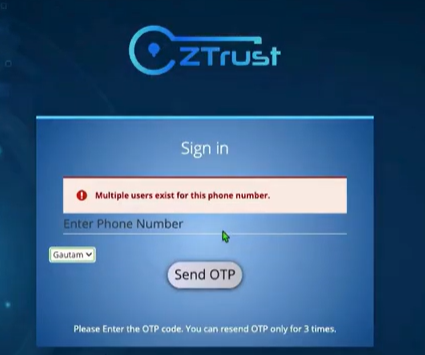
Fig 4.25.s: Duplicate User page
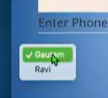
Fig 4.25.t: User selection page

Fig 4.25.u: Pone number page with otp sent successfully

Fig 4.25.v: Self service page