> For the complete documentation index, see [llms.txt](https://ztrust.gitbook.io/ztrust-documentation/llms.txt). Markdown versions of documentation pages are available by appending `.md` to page URLs; this page is available as [Markdown](https://ztrust.gitbook.io/ztrust-documentation/user-manual-ztrust-v4.1/4.-admin-manual/4.25-self-role-request-at-the-application-level.md).
# 4.25 Self-Role Request at the Application Level
This feature allows users to request a role specific to an application during the registration process. After submitting the request, the user account is automatically disabled, and an email notification is sent to the administrator for approval. This ensures that access to the application is granted only after proper review, enhancing overall security and control.
1. Navigate to the **realm** where you want to implement the self-role request feature.
Fig 4.24.a: Welcome to customer demo realm
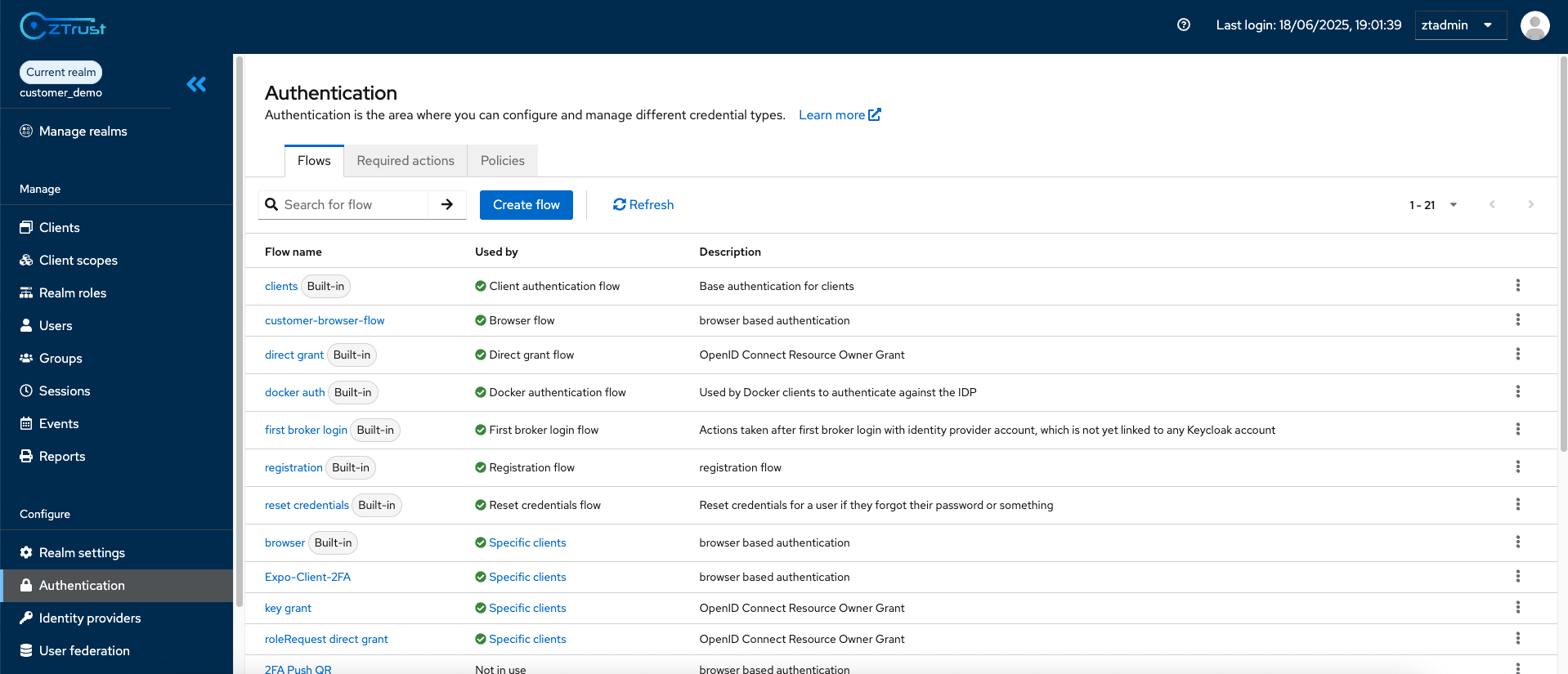
2. In the sidebar, select the **Authentication** tab.
Fig 4.24.b: Navigating to Authentication section in side bar
3. Go to the **Required Actions** section and enable the **Client Role Request** action.
Fig 4.24.c: Navigating to Required actions tab
4. Open the **Client Registration** page and register a new user — the user will be prompted to request a client-specific role during registration.