> For the complete documentation index, see [llms.txt](https://ztrust.gitbook.io/ztrust-documentation/llms.txt). Markdown versions of documentation pages are available by appending `.md` to page URLs; this page is available as [Markdown](https://ztrust.gitbook.io/ztrust-documentation/user-manual-ztrust-v4.1/4.-admin-manual/4.24-self-role-request-at-the-business-level.md).
# 4.24 Self-Role Request at the Business Level
During business-level registration, after providing user details, the user can request a role based on the roles available in that business. Once the request is made, the user is disabled by default, and an email is sent to the admin for approval.
1. Navigate to the realm where you want to implement the self-role request feature.
Fig 4.23.a: Welcome to customer demo realm
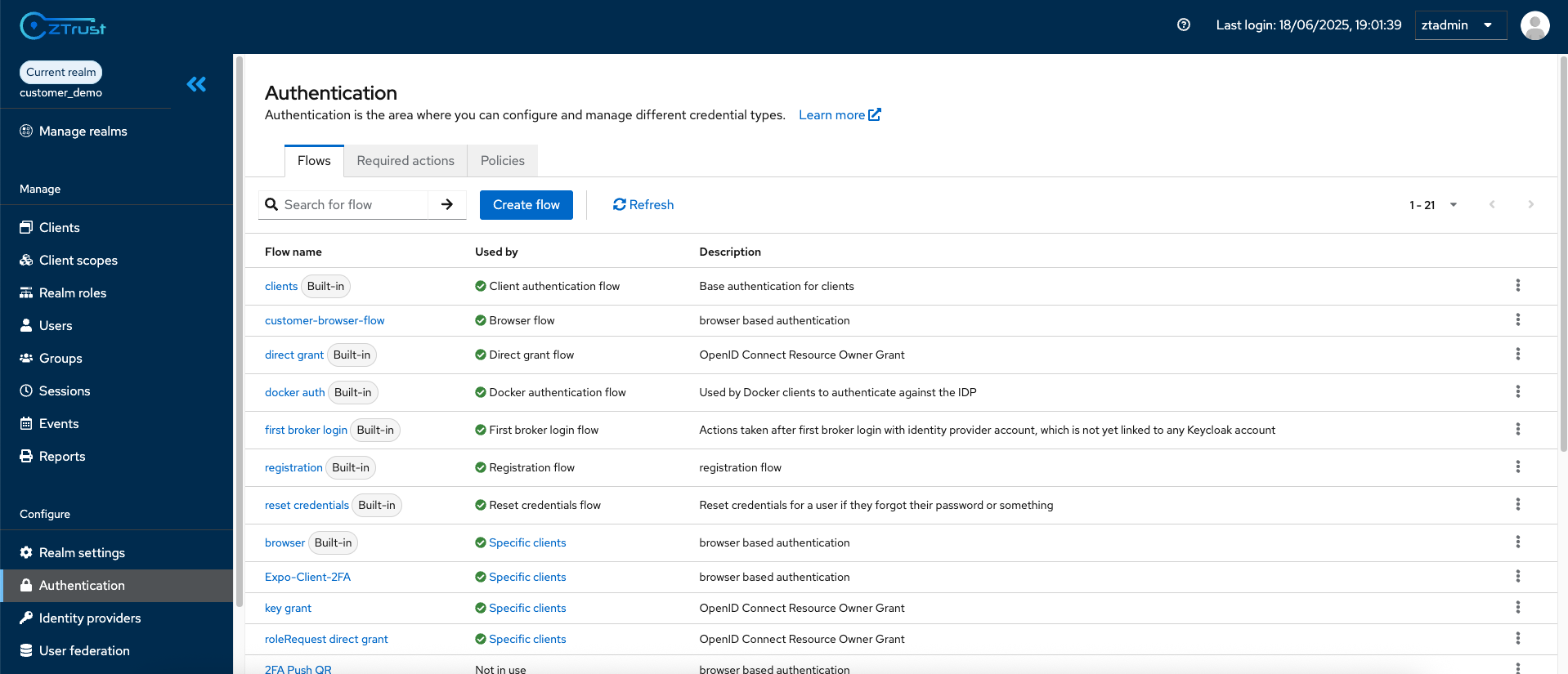
2. In the sidebar, select the **Authentication** tab.
Fig 4.23.b: Navigating to the Authentication section in side bar
3. Go to the **Required Actions** section and enable the **Realm Role Request** action.
Fig 4.23.c: Navigating to required actions tab
4. Open the **Client Registration** page and register a new user — you will be prompted to request a role as shown below.