> For the complete documentation index, see [llms.txt](https://ztrust.gitbook.io/ztrust-documentation/llms.txt). Markdown versions of documentation pages are available by appending `.md` to page URLs; this page is available as [Markdown](https://ztrust.gitbook.io/ztrust-documentation/user-manual-ztrust-v4.1/4.-admin-manual/4.21-setup-inactive-user-tracking-feature.md).

# 4.21 Setup Inactive User Tracking feature

This feature enables the tracking of irregular or inactive users.<br>

To set up Inactive User Tracking feature, follow these steps -

1. Login to the ZTrust Admin Console.
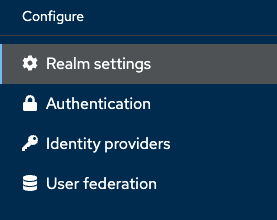
2. Go to the Realm Settings tab on the right.

   <figure><img src="/files/MfH4gkg0yQvCui3mDQg5" alt=""><figcaption><p>Fig. 4.20.a: Navigating to Realm Settings</p></figcaption></figure>
3. Go to the Localization tab.

<figure><img src="/files/8MKVtbCoUI7AQ8PicOb2" alt=""><figcaption><p>Fig. 4.20.b: Navigating to Localization in Realm Settings</p></figcaption></figure>

4. Click on Realm overrides.

<figure><img src="/files/yDLRCCB0CLa4s77PKEYY" alt=""><figcaption><p>Fig. 4.20.c: Navigating to Realm Settings ⇒ Localization ⇒ Realm Overrides</p></figcaption></figure>

5. Click on Add translation.
6. Give any name, for example - Inactive User and click on Create.
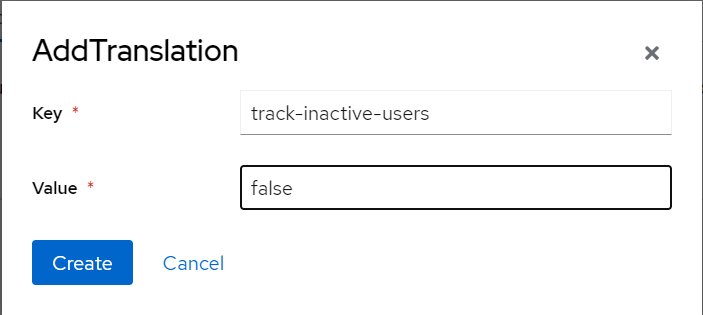
7. Give the Key as track-inactive-users and Value as false.

<figure><img src="/files/7bRE5oVbVbzofl6y3Psz" alt=""><figcaption><p>Fig. 4.20.d: Adding a new translation for enablng/disabling inactive user tracker</p></figcaption></figure>

8. Click on Create.
9. Click on Add translation.
10. Create a Key as max-idle-time and give any number as Value, for example - 5

<figure><img src="/files/BlTLCghFzOPimmq8EPwE" alt=""><figcaption><p>Fig. 4.20.e: Adding a new translation for maximum idle time</p></figcaption></figure>

11. Click on Create.
12. Click on Add translation.

<figure><img src="/files/yhUuUa5gGczNKnzBbG91" alt=""><figcaption><p>Fig. 4.20.f: Adding a new translation for unit of max idle time</p></figcaption></figure>

13. Provide the Key as max-idle-time-unit, and provide the Value as hours, minutes, days as required. For example - minutes.
14. Click on Create.

<figure><img src="/files/Z9JTkGJHTmdmc2gVvlqO" alt=""><figcaption><p>Fig. 4.20.g: Created keys for inactive user tracker</p></figcaption></figure>

15. Click on Add translation.
16. Provide the Key as warning-time and the Value as required, for example - 3.

<figure><img src="/files/w4eQsibeENMZHnalUH2i" alt=""><figcaption><p>Fig. 4.20.h: Adding a new translation for warning time</p></figcaption></figure>

17. Click on Create.
18. Follow the same steps from 15 to 17 and create another localization text with Key as warning-time-unit and Value as required, for example - minutes.

<figure><img src="/files/gcwZpApvrQH5KGNWW3zj" alt=""><figcaption><p>Fig. 4.20.i: Adding a new translation for unit of warning time</p></figcaption></figure>

<figure><img src="/files/KXm4MJE0mIJv3P3iD4u8" alt=""><figcaption><p>Fig. 4.20.j: Saved the keys for inactive user warning</p></figcaption></figure>

19. Again create another translation with Key as api-base-url and Value as required.

<figure><img src="/files/y7fX6TbaUxSOHtNOLhmU" alt=""><figcaption><p>Fig. 4.20.k: Adding a new translation for api base url</p></figcaption></figure>

20. &#x20;Click on Create.

A table will be displayed which will have all the Key-Value pairs that you have created along with the Actions to Edit or Delete.

<figure><img src="/files/I34EVn3lMkjdi9acvnat" alt=""><figcaption><p>Fig. 4.20.l: Saving the api base url</p></figcaption></figure>

21. Click Edit for track-inactive-users.

<figure><img src="/files/DmzJYqzybKRa8vWO34Zx" alt=""><figcaption><p>Fig. 4.20.m: Editing the 'track-inactive-users' key</p></figcaption></figure>

22. Change the Value to true from false.

<figure><img src="/files/v7P4PJIjjoaR5ZBbloDF" alt=""><figcaption><p>Fig. 4.20.n: Making the 'track-inactive-users' true</p></figcaption></figure>

23. Click on the tick symbol.

The Inactive User Tracking feature is configured now.

<br>