> For the complete documentation index, see [llms.txt](https://ztrust.gitbook.io/ztrust-documentation/llms.txt). Markdown versions of documentation pages are available by appending `.md` to page URLs; this page is available as [Markdown](https://ztrust.gitbook.io/ztrust-documentation/user-manual-ztrust-v4.1/4.-admin-manual/4.16-setup-session-invalidator-feature.md).

# 4.16 Setup Session Invalidator feature

To further strengthen session management and reinforce secure user access, ZTrust now offers enhanced controls under the Session Invalidation Notification feature. This capability ensures that only the active session remains valid, thereby preventing unauthorized or unmonitored concurrent access.

**Introduction**

Session management is a critical component of identity and access control. ZTrust introduces refined session invalidation capabilities that enable administrators to define how multiple login sessions are handled, providing an added layer of control and security. These options help organizations enforce stricter login behaviors, mitigating the risk of unauthorized access through abandoned or shared sessions.

**Previous Functionality**

Previously, the Session Invalidation Notification section supported only the "Allow Maximum Login Sessions" option. This allowed administrators to configure the maximum number of concurrent sessions a user could maintain. Upon reaching the session limit, the system would automatically terminate the oldest active session to accommodate a new login.

**New Feature: "Deny New Session"**

With ZTrust V4.0.0, we have introduced a second option: "Deny New Session". When this setting is enabled and the configured maximum session limit is reached, any new login attempt is denied. The system does not invalidate older sessions, thereby enforcing the session limit strictly until an existing session is manually terminated or expires.

**Benefits**

* Stronger session control and visibility
* Prevents unauthorized concurrent logins
* **Fully configurable** based on organizational policies
* Supports **compliance**, **risk management**, and **auditability**

These new enhancements enable ZTrust administrators to tailor session behaviors to better suit compliance, risk, and operational requirements.

Follow the below steps to set up Session Invalidator feature

1. Login to ZTrust Admin Console.

   <figure><img src="/files/0ZjTYndBhfecJdMPB6LE" alt=""><figcaption><p>Fig. 4.15.a: Welcome page of session_invalidation realm</p></figcaption></figure>
2. Click on Authentication.

   <figure><img src="/files/jogs9B0WLeMQ6l6ZvFgA" alt=""><figcaption><p>Fig. 4.15.b: Navigate to Authentication</p></figcaption></figure>
3. Click on Duplicate and create a copy of Browser Flow.

<figure><img src="/files/xLvw54rxDqLdceKlVM3G" alt=""><figcaption><p>Fig. 4.15.c: Duplate the browser flow</p></figcaption></figure>

4. Provide any name. For example - Session Invalidation and click on OK.

<figure><img src="/files/GmXO9Ir7lWADXmh83oQk" alt=""><figcaption><p>Fig. 4.15.d: Give a name to the duplicated browser flow for session invalidation</p></figcaption></figure>

5. Click on Duplicate.

<figure><img src="/files/BUV0YtXvLBszdF0UgZJh" alt=""><figcaption><p>Fig. 4.15.e: 'Session Invalidation' browser flow configuration page</p></figcaption></figure>

6. Delete everything under Session Invalidation Forms.

<figure><img src="/files/De4ohowogdJw3yjX8cSr" alt=""><figcaption><p>Fig 4.15.f: Duplicated browser flow configuration page for Session Invalidation</p></figcaption></figure>

7. Click on Add step.

<figure><img src="/files/XXzXy72QLGAJj59yuhdR" alt=""><figcaption><p>Fig 4.15.g: Proceeding to add a new execution to Session Invalidation flow</p></figcaption></figure>

8. Select Advanced Session Invalidator.
9. Click on Add.
10. For Advanced Session Invalidator, make the requirement as Required.

<figure><img src="/files/IOkrRON1Ot7hnK5oR9Kn" alt=""><figcaption><p>Fig 4.15.h: Changing the 'Requirement' of Advanced Session Invalidator</p></figcaption></figure>

11. For Advanced Session Invalidator, click on settings.

<figure><img src="/files/NuEkqCFhcVWGswNalElz" alt=""><figcaption><p>Fig 4.15.i: Proceeding to configure Session Invalidator</p></figcaption></figure>

12. Now two options now provide administrators with greater control over session management:
    * **Allow Maximum Login Sessions:** Allows new logins by terminating the oldest session once the session limit is reached.
    * **Deny New Session:** Prevents any new logins once the session limit is reached, unless an existing session is manually terminated or expires.

<figure><img src="/files/Ozqv6snU09sHBleLWBdY" alt="" width="437"><figcaption><p>Fig 4.15.j: Configuring Session Invalidation</p></figcaption></figure>

13. Click on Save.
14. Click on Action, and then Bind flow.

<figure><img src="/files/yVirPqcyC8oBFdFfZrvZ" alt=""><figcaption><p>Fig 4.15.k: Proceeding to bind the login Session Invalidation flow</p></figcaption></figure>

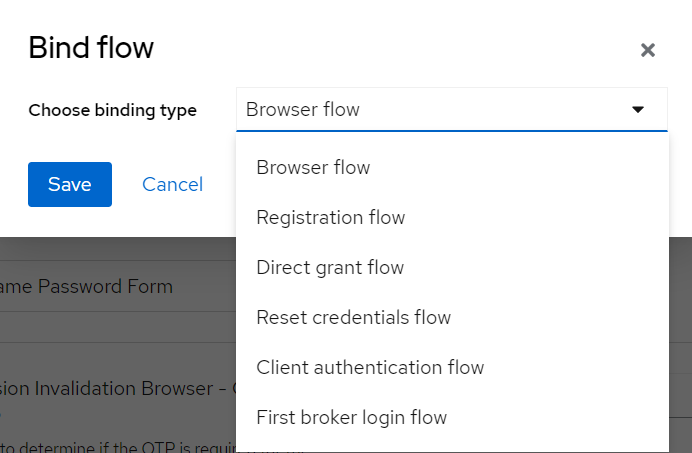
15. Select Browser flow from the dropdown menu.

<figure><img src="/files/hASEszmgYiXlyJySPosp" alt=""><figcaption><p>Fig 4.12.6.j: Selecting a flow to bind Session Invalidation flow to</p></figcaption></figure>

16. Click on Save.

Session Invalidation feature is configured now.

<br>


---

# Agent Instructions
This documentation is published with GitBook. GitBook is the documentation platform designed so that both humans and AI agents can read, navigate, and reason over technical content effectively. Learn more at gitbook.com.

## Querying This Documentation
If you need additional information that is not directly available in this page, you can query the documentation dynamically by asking a question.

Perform an HTTP GET request on the current page URL with the `ask` query parameter, and the optional `goal` query parameter:

```
GET https://ztrust.gitbook.io/ztrust-documentation/user-manual-ztrust-v4.1/4.-admin-manual/4.16-setup-session-invalidator-feature.md?ask=<question>&goal=<endgoal>
```

`ask` is the immediate question: it should be specific, self-contained, and written in natural language.
`goal` is optional and describes the broader end goal you are ultimately trying to accomplish on behalf of the user. GitBook uses it to tailor the answer towards what is most useful for that goal.

The response will contain a direct answer to the question and relevant excerpts and sources from the documentation.

Use this mechanism when the answer is not explicitly present in the current page, you need clarification or additional context, or you want to retrieve related documentation sections.