> For the complete documentation index, see [llms.txt](https://ztrust.gitbook.io/ztrust-documentation/llms.txt). Markdown versions of documentation pages are available by appending `.md` to page URLs; this page is available as [Markdown](https://ztrust.gitbook.io/ztrust-documentation/user-manual-ztrust-v2.0/admin-manual/how-to-set-up-multi-factor-authentication/setup-of-otp-based-login.md).

# Setup of OTP Based Login

To set up OTP Based Login feature, do the following steps -

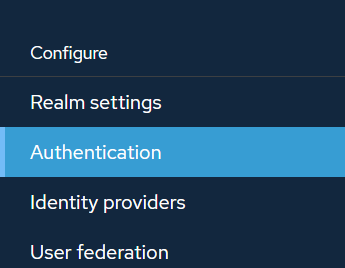
1. Click on Authentication.

<figure><img src="https://1778922777-files.gitbook.io/~/files/v0/b/gitbook-x-prod.appspot.com/o/spaces%2F3EUK5AUZv0UVaI5S0CTM%2Fuploads%2Fy9cgkTDheARPITadw5mT%2F5.png?alt=media&amp;token=29c43f45-8293-4097-89e6-5d56f80be9e1" alt=""><figcaption></figcaption></figure>

<figure><img src="https://1778922777-files.gitbook.io/~/files/v0/b/gitbook-x-prod.appspot.com/o/spaces%2F3EUK5AUZv0UVaI5S0CTM%2Fuploads%2FTUXsZmq9Qr8LuhqdTU53%2F6.png?alt=media&amp;token=f4824bbe-8dbc-4a74-9a0a-aabf1f368c98" alt=""><figcaption></figcaption></figure>

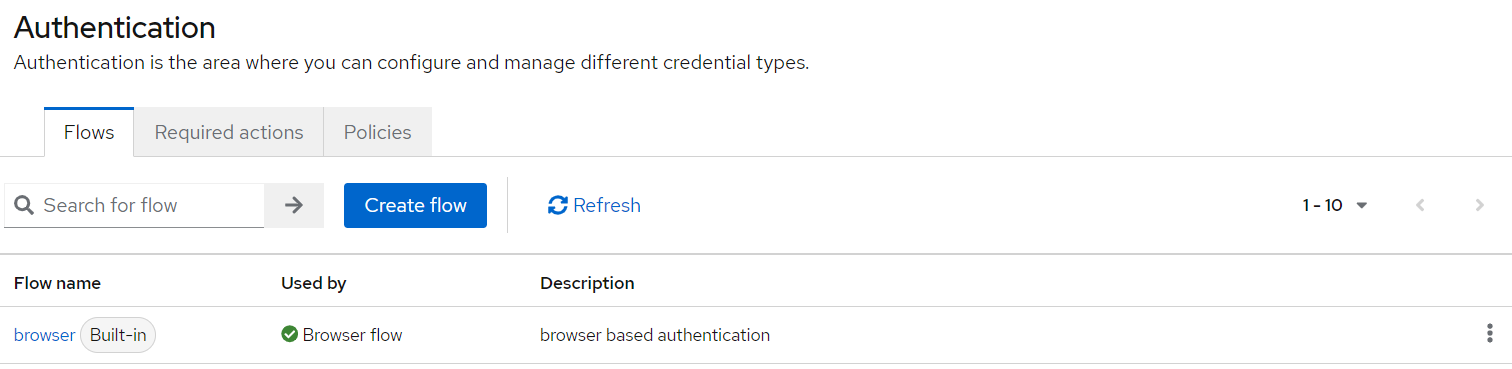
2. Click on Duplicate for Browser Flow.

<figure><img src="https://1778922777-files.gitbook.io/~/files/v0/b/gitbook-x-prod.appspot.com/o/spaces%2F3EUK5AUZv0UVaI5S0CTM%2Fuploads%2FJzW60jDPZGby9wtTTl8m%2F7.png?alt=media&amp;token=6b44c092-9540-452d-a9ef-79ed96284b75" alt=""><figcaption></figcaption></figure>

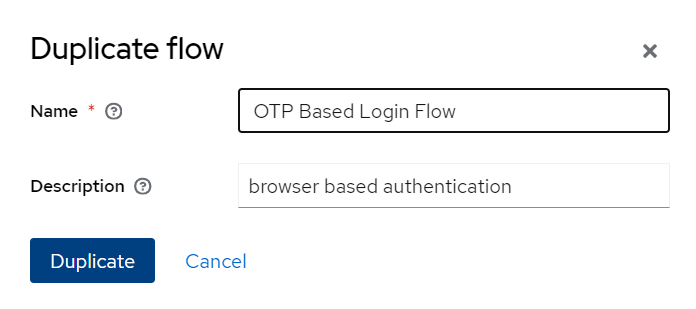
3. Provide any name - OTP Based Login Flow.

<figure><img src="https://1778922777-files.gitbook.io/~/files/v0/b/gitbook-x-prod.appspot.com/o/spaces%2F3EUK5AUZv0UVaI5S0CTM%2Fuploads%2FpItBSRMmTfcAYLeabq5l%2F8.png?alt=media&amp;token=102e4ecf-74e7-403a-8cb0-e3791d17d511" alt=""><figcaption></figcaption></figure>

4. Click on Duplicate.

<figure><img src="https://1778922777-files.gitbook.io/~/files/v0/b/gitbook-x-prod.appspot.com/o/spaces%2F3EUK5AUZv0UVaI5S0CTM%2Fuploads%2FVTOGQRiGkAoATCFyZzdj%2F9.png?alt=media&amp;token=ab733ef5-0f23-4277-94eb-82f19ef8210a" alt=""><figcaption></figcaption></figure>

5. Click on Add step.

<figure><img src="https://1778922777-files.gitbook.io/~/files/v0/b/gitbook-x-prod.appspot.com/o/spaces%2F3EUK5AUZv0UVaI5S0CTM%2Fuploads%2FYoWCUFecbglNAaZj9sKK%2F11.png?alt=media&amp;token=b6c8d036-4e1c-4ae9-a962-fed622b6ed68" alt=""><figcaption></figcaption></figure>

6. Select  Advance Phone OTP Authenticator.
7. Click on Add.
8. For the Advance Phone OTP Authenticator, click on Settings.

<figure><img src="https://1778922777-files.gitbook.io/~/files/v0/b/gitbook-x-prod.appspot.com/o/spaces%2F3EUK5AUZv0UVaI5S0CTM%2Fuploads%2F1Czj4ROCD898InC0xhyD%2F12.png?alt=media&amp;token=b12bd5a4-0af3-4228-a42c-f0fdc5ff04cb" alt=""><figcaption></figcaption></figure>

9. Provide the below details as required.

<figure><img src="https://1778922777-files.gitbook.io/~/files/v0/b/gitbook-x-prod.appspot.com/o/spaces%2F3EUK5AUZv0UVaI5S0CTM%2Fuploads%2Fn4wL5fEZJDejsdwBgO3U%2F13.png?alt=media&amp;token=0581f1a8-fef0-479a-a7ea-d8716b5ee06f" alt=""><figcaption></figcaption></figure>

10. Click on Save.
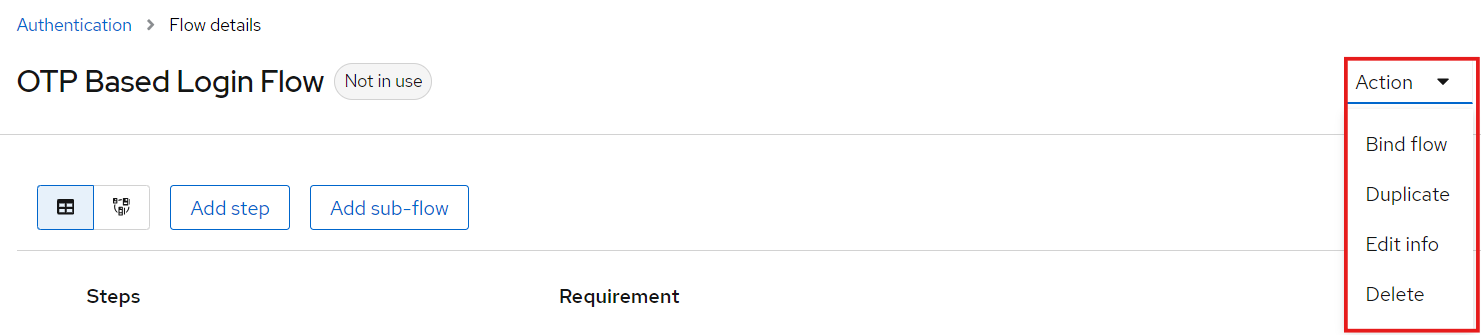
11. Click on Action, and then on Bind flow.

<figure><img src="https://1778922777-files.gitbook.io/~/files/v0/b/gitbook-x-prod.appspot.com/o/spaces%2F3EUK5AUZv0UVaI5S0CTM%2Fuploads%2FeykNtzYeC2UfywdDMmmn%2F14.png?alt=media&amp;token=f2e6a4b4-6ee0-48ef-8540-8124f98404eb" alt=""><figcaption></figcaption></figure>

<figure><img src="https://1778922777-files.gitbook.io/~/files/v0/b/gitbook-x-prod.appspot.com/o/spaces%2F3EUK5AUZv0UVaI5S0CTM%2Fuploads%2FeXzT2kTVhkXeJouCesLm%2F15.png?alt=media&amp;token=8b9fc9c9-0d3b-4790-a7c6-2033d942a277" alt=""><figcaption></figcaption></figure>

12. Select the Browser flow.
13. Click on Save.

OTP Based Login Flow will now be enabled.
<br>